


How to upgrade or downgrade your Resos plan
In this article
As we want to help you grow and be there by your side while you do so, we have made it easy to make changes to your subscription whenever you need. This guide provides detailed instructions on how to upgrade, downgrade, or cancel your Resos subscription plan.
At Resos we have chosen to charge based on the total number of bookings the restaurants receive in the system. The reason behind why we limit the different plans by the number of bookings is because we want to keep it fair for both small and large restaurants.
Here are the different plans and their limits:
- Free – 25 bookings/month
- Basic – 350 bookings/month
- Plus – 750 bookings/month
- Unlimited – unlimited bookings/month
See the prices for the different plans here.
Upgrading or downgrading your Resos subscription (from the Free plan)
To upgrade your subscription plan from the Free plan, follow these steps:
Log in to Resos → Menu → Settings → Account → Billing → Select plan.
- Login to your dashboard: Begin by navigating to the Resos website and logging into your account using your credentials.
- Access settings: Look for the Settings option, which is in the Menu, on the upper left side of the screen.
- Navigate to billing: Within the settings menu, you will find various options. Locate and click on the Billing section.
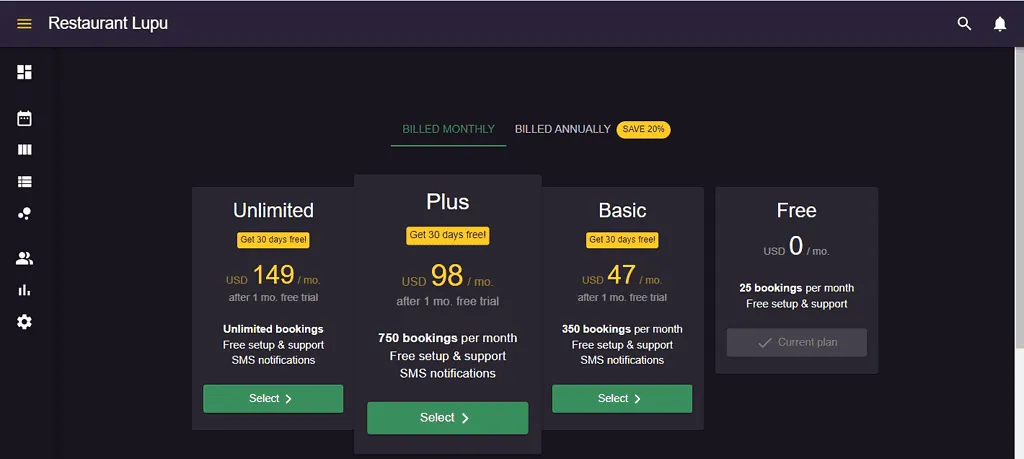
- Choose subscription: In the billing section, find the Subscription tab. This tab displays your current subscription plan. Since you’re on the Free plan, you’ll see a Select plan button for each available paid plan.
- Choose your billing cycle: Pick monthly or yearly billing for the plan you want, then click Select plan to continue.
- Select the desired plan: Review the available plans and decide which one suits your needs the best. Click on the Select button beneath the plan you wish to switch to. Make sure to review the details of the new plan to understand the benefits and costs involved.
- Confirmation: After selecting your desired plan, a confirmation prompt will appear. Follow the on-screen instructions to confirm your choice.
The new plan will be activated at the end of your current billing cycle, ensuring a seamless transition without any disruption to your service.
Here is an example of what the subscription options might look like:
For downgrading your plan, contact our support team at hi@resos.com.
Upgrading or downgrading your Resos subscription (from a paid plan)
For upgrading your plan, if you exceed the number of bookings that are allowed for the chosen plan, the system will automatically take this into consideration and upgrade you to the plan that fits your needs. We will, of course, notify you about this before your next payment via an email notification, so that you are aware of the upgrade.
For downgrading your plan, contact our support team at hi@resos.com.
⚠️ Note: If you want to cancel, you can do it yourself by following the cancellation steps.
Cancelling your Resos subscription
If you need to cancel your Resos subscription, the process is straightforward. Follow these steps:
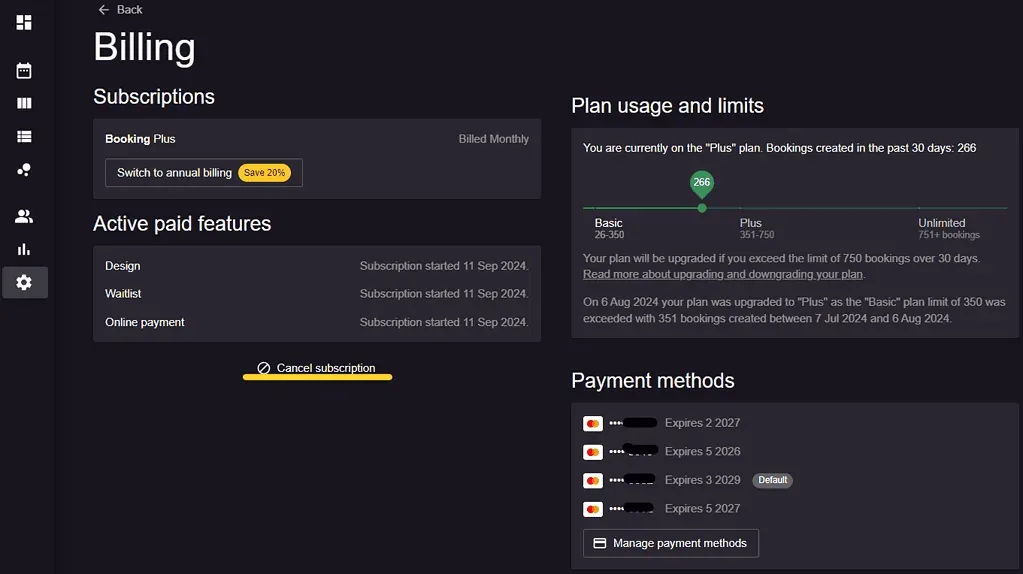
Go to Menu → Settings & add-ons → Account → Billing. In the Subscription section, click Cancel subscription. Confirm the cancellation by following the on-screen instructions. Make sure you understand the terms of cancellation, such as when your current service will end and any remaining billing obligations.
The cancellation button looks like this:
By following these detailed steps, you can easily manage your Resos subscription plan. Whether you need to upgrade, downgrade, or cancel, this guide provides the necessary instructions to make the process smooth and straightforward. If you encounter any issues or have additional questions, please do not hesitate to contact us at hi@resos.com for any further assistance.