


How to set up the guest feedback feature
In this article
What is the feedback feature?
The feedback feature helps you automatically collect feedback after a guest has visited your restaurant. By sending a short follow-up email or SMS, you can learn more about your guests’ experience, identify areas for improvement, and encourage satisfied guests to leave positive online reviews.
The feedback collected is available directly in Resos, making it easy to monitor guest satisfaction and improve your service over time.
How to activate the feedback feature
Step 1: Activate the feedback feature
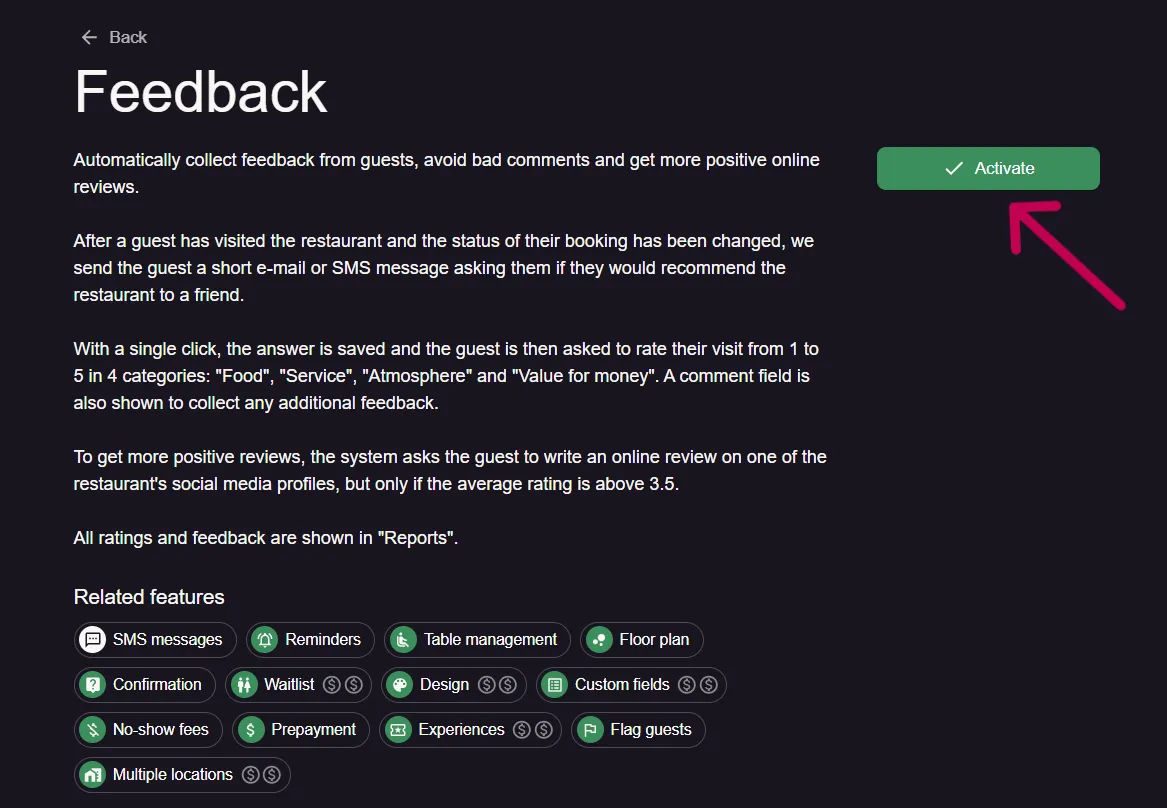
To activate feedback, go to Menu → Settings & add-ons → Communication → Feedback.
Click Activate to enable the feature.
Step 2: Configure the feedback request
You can add a review link so that guests with an average rating above 3.5 are invited to leave a public review on your preferred platform, such as Google, Facebook, TripAdvisor, or Yelp.
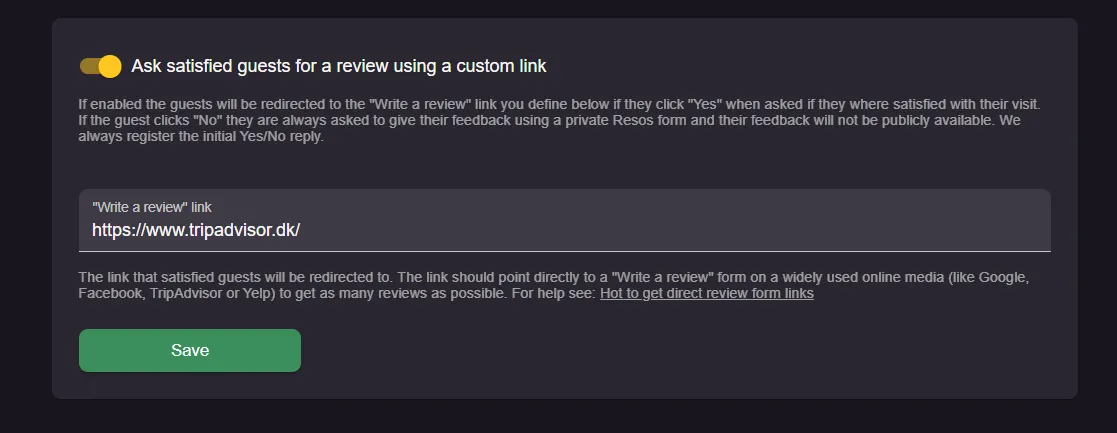
Not sure which link to use? Here is how to get direct review form links for your preferred platform.
How does feedback work?
Once a guest has visited your restaurant and their booking has reached the appropriate status, Resos automatically sends them a short feedback request.
The guest is first asked a simple question: Are you satisfied with your visit?
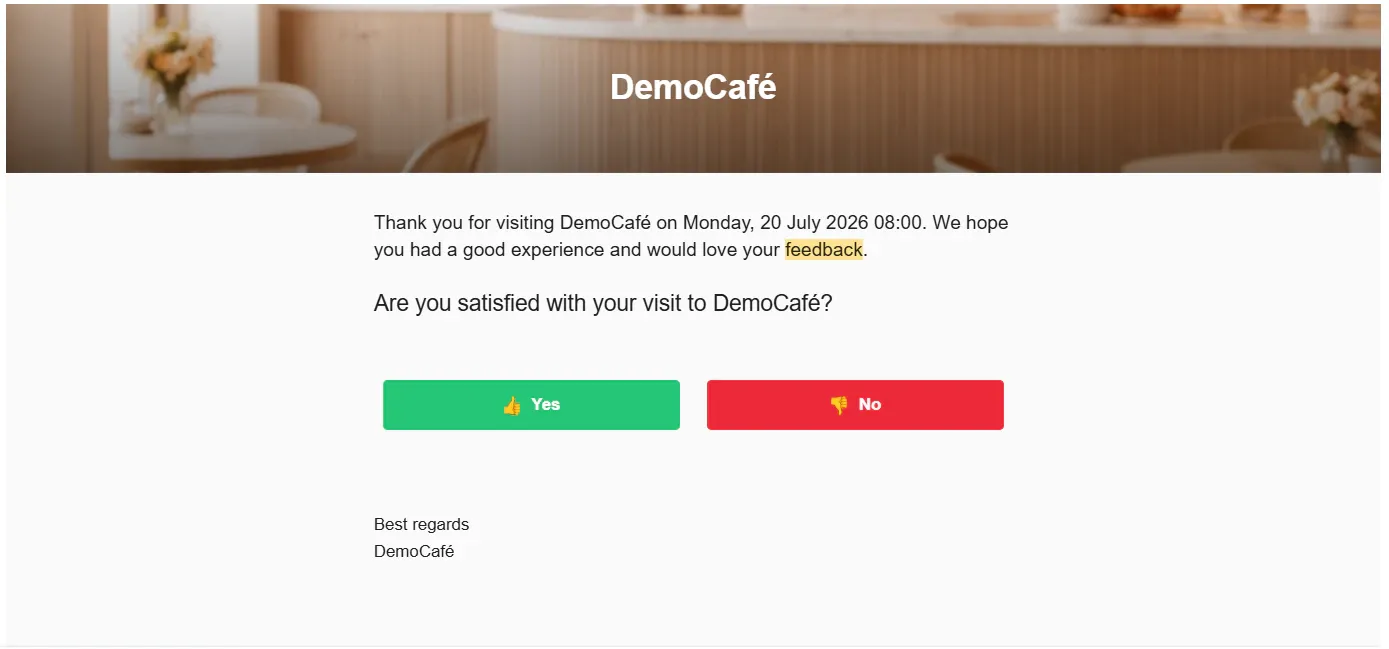
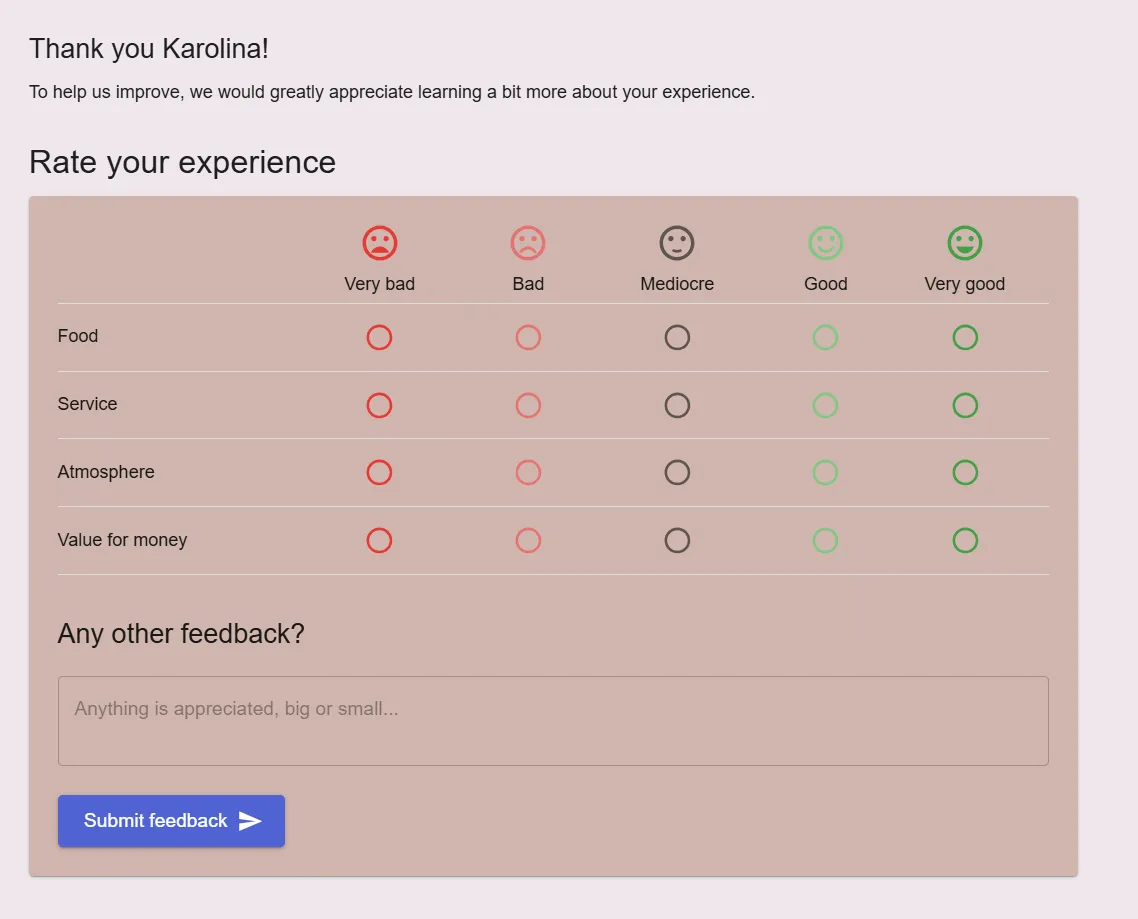
Depending on their response, guests either go directly to your configured review page (if they choose “Yes”) or are first asked to rate their experience and leave feedback. Guests whose average rating is above 3.5 are then invited to leave a public review.
Guests can rate:
- Food
- Service
- Atmosphere
- Value for money
They can also leave an optional written comment.
Encourage more positive online reviews
If the guest’s average rating is above 3.5, Resos will invite them to leave a public review on your preferred review platform or social media page.
This helps increase positive online reviews while giving guests with lower ratings the opportunity to share their feedback privately instead.
View your feedback reports
All guest ratings and comments are automatically saved in Resos.
To view your feedback, go to Menu → Reports → Feedback. Here you can:
- review guest ratings
- read guest comments
- identify trends over time
- discover areas that need improvement
Read more about feedback and feedback replies reports.
We hope you found this guide useful. If you have any questions about setting up the feedback feature or any general questions about Resos, do not hesitate to contact us at hi@resos.com. Our support representatives are excited to offer their help!