


How to export data from Resos
In this article
Whether you need a backup of your guest list, a spreadsheet for your accountant, or a way to follow up on feedback, exporting your data out of Resos takes less than a minute. Here’s how to do it.
To find this feature, go to Menu → Settings & add-ons → Advanced → Export data.
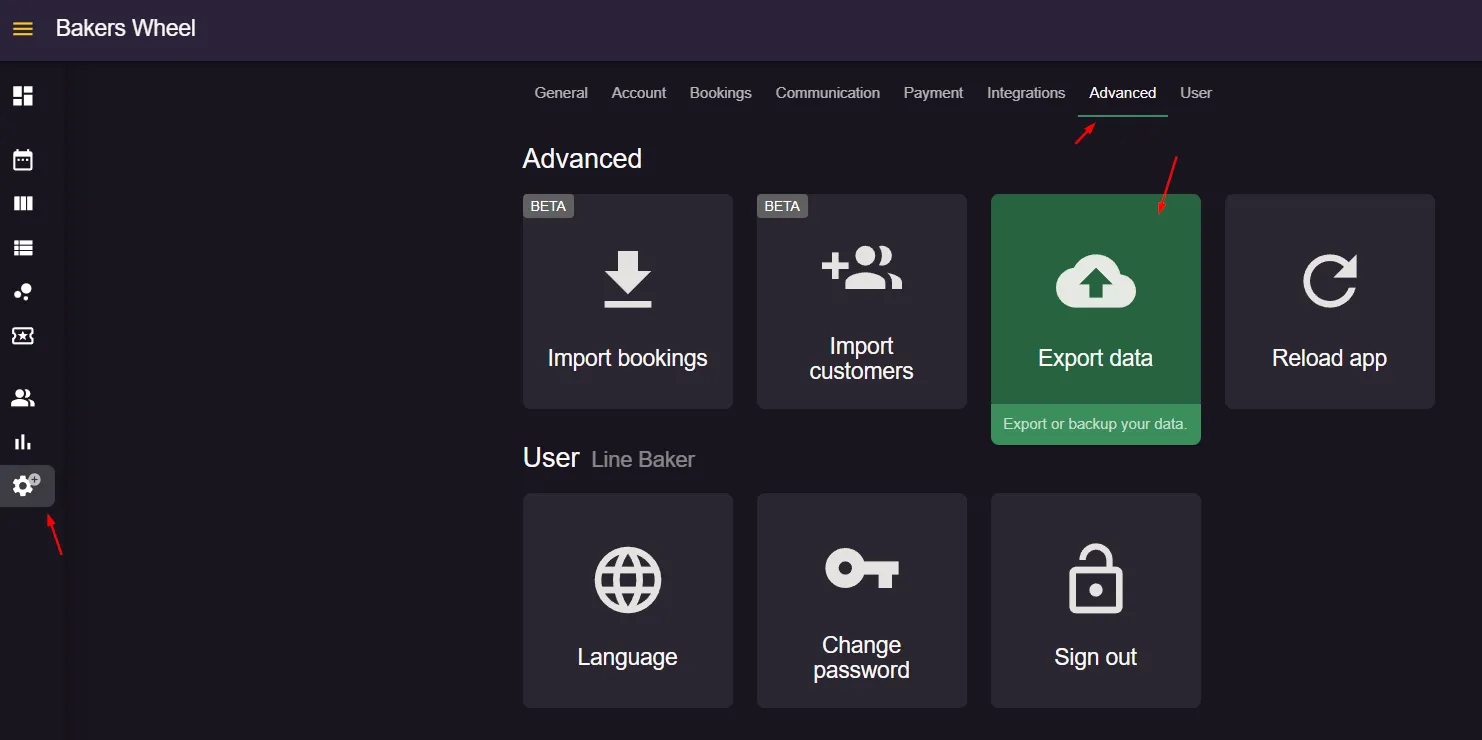
You can export three types of data: bookings, customers, and feedback. Each is downloaded separately as its own CSV file. You can’t export all three at once, and a single export can include up to 5,000 records.
Choose one of the following data types
| Category | Fields included | Notes |
|---|---|---|
| Bookings | ID, date, time, duration, party size, table(s), area, status, source, opening hour, guest name/email/phone (plus notification preferences), payment type/amount/currency/status, comments, restaurant notes, timestamps, custom fields | Includes the guest’s contact details, so you don’t need the Customers export just to see who booked |
| Customers | Name, email address(es), phone number(s), company, address, tags, flag status and notes, created date | One row per guest profile, not tied to a specific booking |
| Feedback | Recommended (yes/no), ratings for atmosphere/food/service/value, written message, plus the linked booking’s ID, party size, date and time, and guest name/email/phone | Only shown for bookings where the guest submitted feedback |
Step 1: Choose a data type and date range
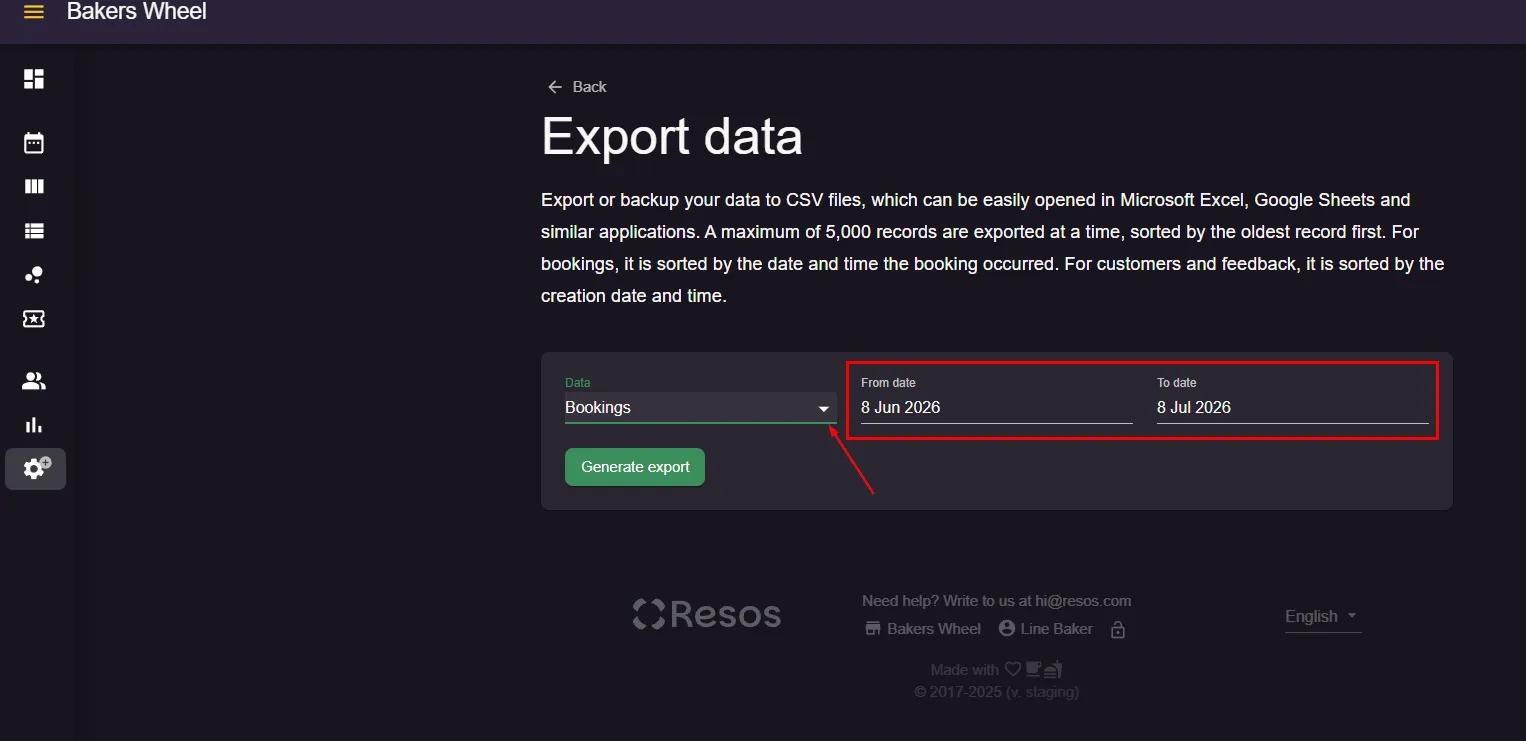
- Use the Data dropdown to select Bookings, Customers, or Feedback. Only one type can be exported at a time, so repeat the process to download the others.
- Select a period by setting the From date and To date values.
Step 2: Generate and download the CSV
- Double-check the data type and dates are correct.
- Click Generate export.
- Your browser downloads a .csv file containing only the data type you selected, for the chosen period.
Step 3: Open your file
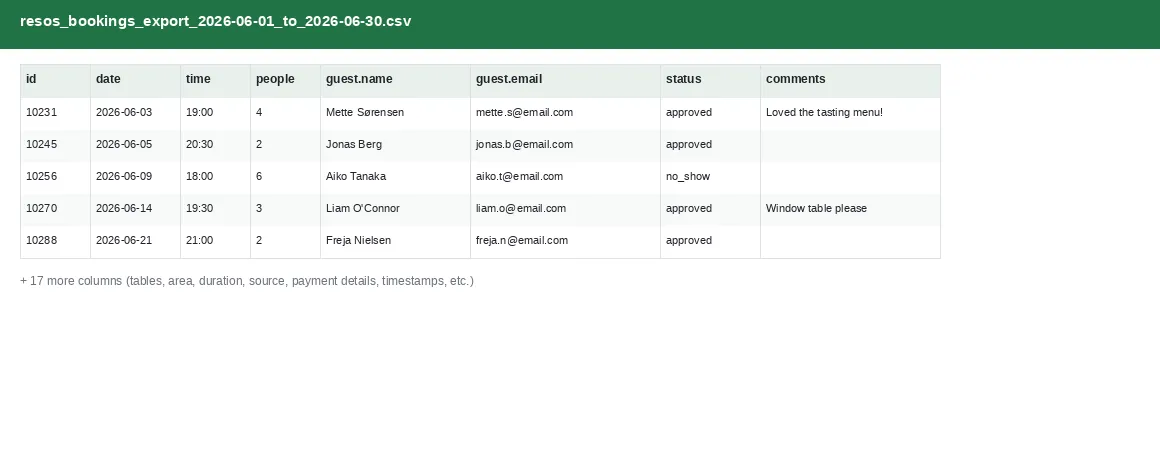
Open the downloaded file in Excel, Google Sheets, or Numbers. Columns are pre-labeled, so no cleanup is needed before you start working with it. Rows are sorted with the oldest record first: bookings by the date and time the booking occurred, customers and feedback by their creation date. Repeat the steps above with a different data type selected to export the other two categories.
Once you’re set up in Resos, you can just as easily bring data in the other way. See how to import bookings.
Why export your data
Exporting regularly turns data that normally lives inside Resos into something your whole team can act on: offline, in a spreadsheet, or in another tool.
Customer data
- Marketing outreach: build segmented email or SMS lists for seasonal menus, special events, or reminders using names, emails, and visit history exported together.
- Loyalty and retention: identify repeat guests and high-frequency diners so you can set up loyalty perks, personalized offers, or a quiet check-in with regulars.
- Data portability and backup: keep your own copy of your guest list outside Resos, useful for record-keeping, migrating tools, or sharing with a CRM.
- Team access: hand a guest list to marketing, front-of-house, or ownership without giving them login access to the dashboard.
Booking data
- Service preparation: print tonight’s or tomorrow’s bookings (party size, time, table, and notes) as a backup for hosts, especially useful if the internet is down.
- Staffing and scheduling: spot patterns in booking volume by day or time to staff appropriately and avoid over- or under-staffing.
- Accounting and reporting: share booking history with an accountant or ownership for financial reporting, tax season, or performance reviews.
- Operational analysis: review cancellations and no-shows over a period to refine your booking policies or deposit requirements.
Feedback data
- Spot recurring issues: identify common complaints about food, service, or wait times early enough to act on them.
- Reinforce what’s working: surface consistently positive comments to highlight strengths, train staff, or use in marketing.
- Close the loop with guests: follow up directly with guests who left feedback, showing them their input was heard.
- Track satisfaction over time: compare ratings across periods to see whether changes you’ve made are actually improving the guest experience.
Please note: exported files contain personal guest information (names, emails, phone numbers). Store and share exports securely, and only export the date range you actually need.
We hope you found this guide useful. If you have any questions about exporting your data or any general questions about Resos, do not hesitate to contact us at hi@resos.com. Our support representatives are excited to offer their help!