


How to enable the online payment add-on
In this article
- Stripe actions
- Steps to enable the online payment add-on
- FAQ
- What payment methods can my guests use?
- How do I delete a guest’s saved payment method?
- What if Resos suddenly stops collecting fees?
- What happens if a guest doesn’t complete payment in time?
- Should I contact Stripe support directly for account issues?
The purpose of this support article is to explain what the online payment add-on does and the steps to enable it. This feature is used as a first step in requiring payments from the guests for bookings, both for prepayments (deposits) and no-show fees. Read more to find out how to enable it and a few other vital details about the add-on. 👇

Stripe actions
Once online payment is enabled, you can create a Stripe account and connect it to your Resos profile so that you can handle and manage all the fees collected from your customers. On your Stripe account, you can do the following:
- pay out the collected fees.
- offer refunds.
- create new invoices for your customers.
- customize the available payment methods for collecting the fees.
- delete your customers’ payment information.
Steps to enable the online payment add-on
There are four simple steps to start collecting fees for your bookings right away:
- Go to Menu → Settings & add-ons → Payments → Online payment and enable the add-on.
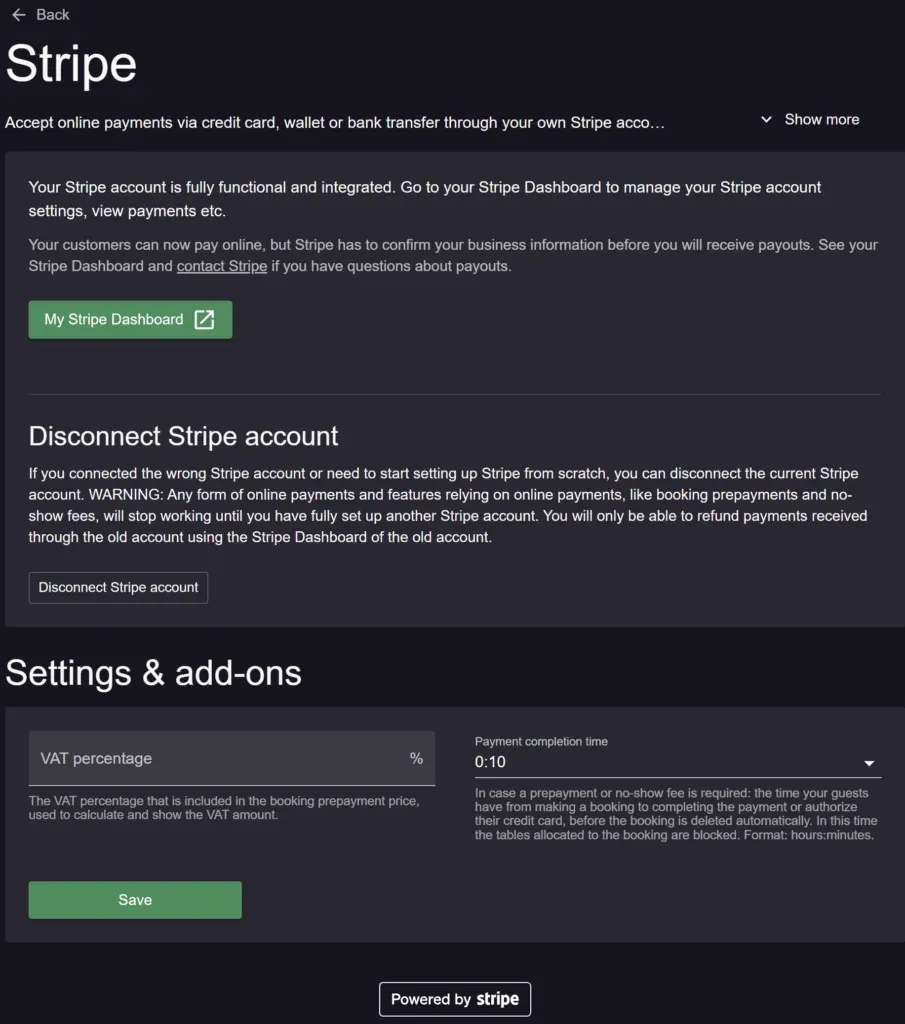
- Create a Stripe account (by following the onboarding steps provided by Stripe) or connect your Stripe profile (if you have one already).
- In the “Payments” section, you can enable Prepayments and/or No-show fees as well and set them up in “Opening hours”.
- Go back to “Online payment” and set the VAT percentage and Payment completion time for your future transactions.
❗NB: This add-on is a paid one, so please click on this page to see the pricing based on your currency and monthly or yearly billing. On top of that, a 2% surcharge applies whenever you collect a prepayment or no-show fee through Resos, and Stripe charges its own standard transaction fee on top (refunds are not charged extra). See our transaction fees FAQ for the full breakdown.
FAQ
Here are a few common questions that our customers have regarding the integration between Resos and Stripe:
What payment methods can my guests use?
Mastercard, VISA, Apple Pay, Google Pay, PayPal, Klarna, SEPA bank transfers, Link, American Express, Revolut Pay, Mobile Pay and many more! Check out this page for more info: https://stripe.com/en-dk/payments/payment-methods.
How do I delete a guest’s saved payment method?
There are 4 simple steps to do that: 1. First, go to this link: https://dashboard.stripe.com/customers. 2. Search for the guest’s name/email address. 3. Go to “Payment Methods” at the bottom part of the screen. 4. Click on the three dots and then on “Delete”.
What if Resos suddenly stops collecting fees?
Sometimes Stripe temporarily disables your account. If Resos doesn’t take fees anymore, check your Stripe account and update your details/take additional security steps, and once you’re cleared, you can collect fees again.
What happens if a guest doesn’t complete payment in time?
If customers don’t add their payment details on time (online and/or manual bookings), the system will automatically delete their booking from the system. Then, the only way to solve this is to create their booking again.
Should I contact Stripe support directly for account issues?
Yes, we actually recommend reaching out to Stripe support in case you have any issues with your Stripe profile or questions about some of its processes. You can reach Stripe support by going to the upper right side of your account → Help → Support articles → Contact support.